I decreased my resolution on my computer screen and now my icons are to close. There are to options to fix this the first being holding the control key and scrolling the mouse button (up typically increases).
If the method above does not give you the results you desire (icons to big), then you can adjust the spacing manually through registry editor. Type in “Registry Editor” and select it from the app list.
Once open, follow the path (Computer – HKEY_CURRENT_USER – Control Panel – Desktop – WindowMetrics) to the icon spacing panel. (Backup your registry values)
To increase your spacing increase the negative number. In the example above, I increased the number from -1125 to -1995 horizontally and vertically increase the spacing from -1125 to -1500. Double click the word IconSpacing and the panel below on the Left will open. To adjust your vertical width, double click IconVerticalSpacing” and the panel below to the Right will open. Adjust to your liking.
Restart your computer for the changes to take effect. It may take a couple of times of changing and restarting to get the spacing to your liking. Remember, when changing the registry, make a backup of the file or write down your original numbers in case you need to revert back.
Little is sexier than telling a friend or loved one, “Hey, can you give me a minute? I have to finish testing my download speeds, then we can head out to the party.” But if you aren’t checking your Internet speeds on a weekly basis, you might not know when there’s a problem. You aren’t likely to notice a difference between 150 Mbps and 80 Mbps download speeds when you’re browsing websites, watching (1080p) YouTube, or chatting with friends, but if you’re downloading a huge Fortnite update, why drive in the slow lane?
Speed tests aren’t time-consuming or tough to do
Most people can probably get away with pulling up Netflix’s fast.com test once a week or so, but there are a few caveats to consider before you start testing. To get a sense of whether you’re getting the right speeds from your ISP, you’ll first need to know what you’re paying for. (Call them up to ask if you forget.) For the purposes of this article, let’s assume you purchased the “speeds of up to 150 Mbps” package.
Grab your fastest device. Preferably, that’s a desktop or laptop that has a wired, gigabit connection to your router. A wireless-ac device will also work (like a pricey laptop or high-end smartphone you purchased at some point over the past few years), but only if you have a wireless-ac router to pair it with. If you’re using wireless-n for either, this test might not be very practical if you’re paying for faster Internet speeds than what your devices can connect at.
In a perfect world, your router will do all the testing for you. You’ll find this kind of a setup on mesh systems like Google Wifi, which can measure the speeds between your router and your ISP and the speeds between the router and any device connected to it. Other mesh systems like Eero, Orbi, and Amplifi also have various speed tests built directly into their apps—and, depending on the system, might even automatically check (and graph) the speed of your connection once per day.
Google Wifi tests your ISP’s download and upload speeds every day, which is a great way to see if you’ve suddenly lost a lot of speed for no clear reason.
Screenshot: David Murphy
What’s slowing down your connection?
The point of all this testing—and running your tests on the fastest connection you can get between your router and a device—is that you’re trying to find bottlenecks. If you’re paying for a 150 Mbps Internet plan, but you’re using older wireless-n devices with a crappy wireless-n router, you might find it hard to even reach a consistent 150 Mbps (or thereabouts) around your home or apartment—even if you’re sitting in the same room as your router.
If you’re connecting with a wired gigabit connection and only seeing 80 Mbps on a fast.com test, then there are plenty of issues that could be at play: Maybe you’re actually connecting at 100 Mbps instead of 1000 Mbps rate after all. Maybe your ISP is suffering some network congestion at the moment. Maybe someone has hacked into your system and is eating up your connection by running a huge BitTorrent server. Maybe fast.com is screwing up, and you should verify the results on another speed-testing site.
If you never get great download speeds from your ISP, but you’re paying them a small fortune for performance, that’s an entirely different story—one that requires a bit more troubleshooting. For now, let’s assume that everything is great and you’re getting exactly what you pay for… until your weekly testing pulls up a problem.
What to do with all your testing data
Regular self-checks of your network can give you the confidence that you’re connecting at your fastest speeds—or the nagging self-doubt that something is going wrong with your setup.
If you’ve done your testing and your download speeds are approximately the same as what your ISP’s plan calls for, make a mental note of what your tests typically report. Then, test your network in the same fashion once a week or so. If you suddenly notice a huge drop in speeds, you can perform a little quick troubleshooting:
Are you seeing the same speeds when testing with different devices? (That’s assuming they can connect to your router at speeds faster than whatever your ISP’s plan promises.)
Are you seeing the same, slower speeds throughout the day?
If you have a separate router and modem, try resetting one, retesting, and then resetting the other and retesting. Any better?
If you have a separate router and modem, try connecting a device (like your desktop computer) directly to your modem and retesting. Then plug your desktop computer back into your router, and your router back into you modem. That hardware firewall is important.
If you call your ISP, what kinds of speeds are they seeing on their end? (In other words, is this a them problem or a you problem.)
If your ISP is at fault, give them an earful and figure out what, if anything, they can do to give you the network performance you deserve. And if all of these signs indicate the problem is on your end, the fun task of troubleshooting begins. You might have to replace your modem or your router. Maybe new wireless access points around your area are causing a lot of interference. Perhaps something is going haywire with the Ethernet port on your desktop PC. Maybe a recent driver update for your wireless card did something screwy. Your Ethernet cable might be going bad.
Though troubleshooting is not the most fun thing to do, at least you’ll know that you have a problem—which you might not have known before, since few likely pay attention to the speed of their Internet connection as long as everythingfeels fast enough. By checking your network’s speeds on a regular basis, you’ll always know if you’re getting the best performance.
What’s Included:
◦ Dell Brand Refurbished Business Desktop
◦ Intel Core 2 Duo 1.8GHz+
◦ 2GB DDR2 Memory
◦ 80GB Hard Drive
◦ DVD-RW Optical Drive
◦ USB Keyboard
◦ USB Mouse
◦ 17″ LCD Monitor
◦ Windows 7 Home Premium with Genuine license and recovery media
◦ Refresh Refurbished with 90 Day Warranty
Woofer Size Classification: Memphis Audio describes this woofer as a 6-1/2″. Because it requires a larger cutout than a standard 6-1/2″, we’re including it with the 6-3/4″ speakers. (It is actually slightly smaller than the typical 6-3/4″.) Please enter you vehicle information to confirm fit in your vehicle.
Tweeter Mounting: The tweeters are shipped in the flush mount housings. Once installed, the tweeter will pivot slightly to optimize imaging.
Tweeter Dimensions:
Crossover: The crossover’s inputs and outputs are screw terminals that will accept bare wire or spade connectors up to 0.31″ wide.
Let’s face it: One of the primary Windows admin tasks is keeping machines free of infection. It’s inevitable. End users will open files, install cutesy apps, and go to sites they shouldn’t go to. When they do these things, their machines get infected. When their machines get infected, you could wind up fighting a losing battle—unless you have the right tools.But sometimes the antivirus tools installed on the machine just aren’t enough. When that time comes, you’ll be glad you have one (or more) tools on your USB drive to help you out. I’ve found five such tools that could certainly get you out of a serious pinch. All these tools are portable and work like champs.
1: ClamWin Portable
ClamWin Portable (Figure A) is very much like its big brother: It’s free, open source, and does a great job of disinfecting machines. ClamWin has a high detection rate, has frequently updated definitions, and provides an easy-to-use graphical interface. ClamWin doesn’t offer a real-time scanner, but that’s not an issue for a portable version. This is my go-to portable virus scanning software.
Figure A
2: Sophos Anti-Rootkit Portable
Sophos Anti Rootkit Portable (Figure B) is one of those tools you hope you never have to use— but you know, at some point, you will. Sophos is remarkably adept at locating root kits, especially for a portable app. It scans, detects, and removes rootkits, it’s free, it supports Windows XP, Vista, and 7, and it works alongside your existing antivirus. I have found Sophos reliable enough to run even while the PC being scanned is in use.
Figure B
3: Emsisoft Emergency Toolkit
Emsisoft Emergency Toolkit (Figure C) is a powerful malware removal tool that can scan for, and remove, more than six million dangers to your PC. Emsisoft Emergency Toolkit has both a GUI and a command-line version, so you can scan your machine even if there are problems with the GUI. With this toolkit, you not only get the malware scanner, you get HiJackFree and BlitzBlank as well. Emsisoft offers a free download, but you can also purchase a pre-compiled USB stick.
Figure C
4: VIPRE Rescue
VIPRE Rescue (Figure D) is that tool you use when your machine is severely infected. VIPRE is run in safe mode and does not depend upon a GUI tool for use. You double-click the executable and a command window opens with the scanner running (and running at blazing speeds). If you already use the full version of VIPRE, you can still run this tool if your machine becomes so infected, VIPRE won’t run.
Figure D
5: Spybot – Search & Destroy Portable
Spybot – Search & Destroy Portable (Figure E) is the portable version of the massively popular full Spybot Search & Destroy. This anti-malware tool does a great job of finding and removing malicious software—all from your flash drive. And Spybot has a unique feature that will help you back up your registry before you begin the scan. Should Spybot fubar your PC’s registry, you’ll have a backup to restore to, safe and sound.
Figure E
Other picks?
You know that time is coming when you’ll require the assistance of portable antivirus and/or anti-malware tool. It’s a shame that this is such a big part of the job, but it’s inevitable. Make sure you’re always armed with the tools to combat this plague by keeping a few of these portable apps with you.
Do you have a favorite portable AV tools? Share your recommendations with fellow TechRepublic members.
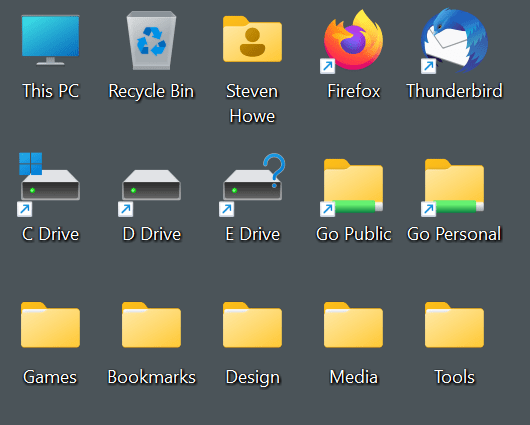
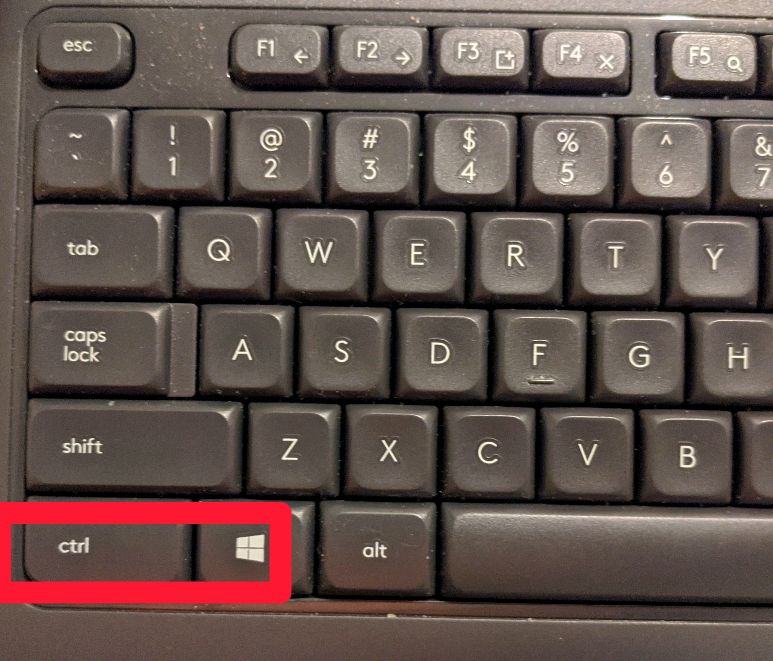

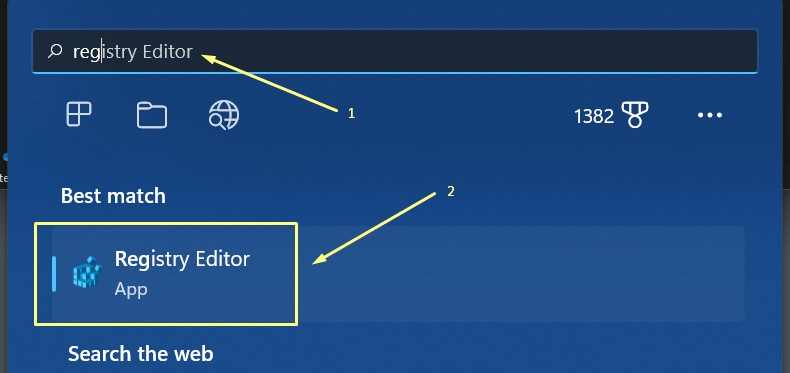


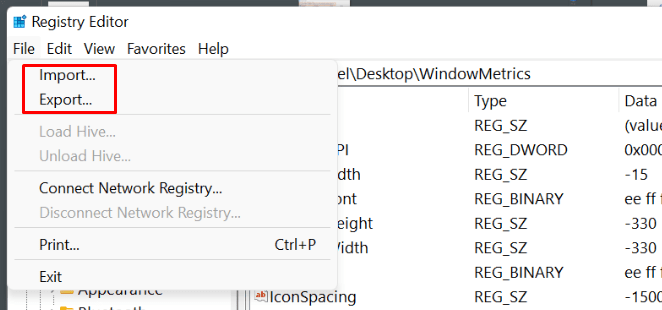


 Image: iStockphoto.com/charnsitr


You must be logged in to post a comment.